
From Prompt to Playable: Rapid Prototyping Sprite Art with AI
There's a moment every indie developer knows intimately: you've got a brilliant game idea burning in your mind, mechanics sketched out, levels half-designed in your head—and then you hit the art wall.
Maybe you're a programmer who can't draw. Maybe you're an artist who's fast but not pixel art fast. Or maybe you just want to test whether your game feels right before investing weeks into polished assets.
This is where AI sprite generation changes the game. Not as a replacement for artistic skill, but as a rapid prototyping superpower that gets you from concept to playable in hours instead of weeks.
The Prototyping Problem
Let's talk about why this matters.
Traditional game development follows a risky pattern: design the game, create assets, build, test, realize something doesn't work, throw away hours of art, start over. It's why so many indie projects die in development—the feedback loop is too slow, and pivoting is expensive.
The studios that ship consistently have learned to prototype fast and fail cheap. But for solo developers and small teams, "fail cheap" usually meant placeholder rectangles and programmer art so bad it was impossible to evaluate whether the game felt right.
AI generation flips this equation. Suddenly you can:
- Test visual styles before committing to one
- Populate your game with diverse characters and items in an afternoon
- Iterate on aesthetics as fast as you iterate on mechanics
- Show playtesters something that actually looks like your vision
The AI-Assisted Workflow
Here's how experienced indie developers are integrating AI sprite generation into their workflow:
Phase 1: Rapid Concept Testing
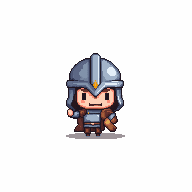
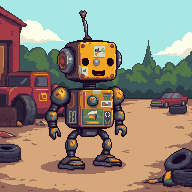
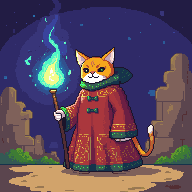
Before you commit to anything, generate 10-20 variations of your main character. Try different descriptions:
- "tiny knight with oversized helmet"
- "scrappy robot held together with tape"
- "cat wizard with flowing robes"
Here's what those prompts produce in Pixelverse using the Retro Diffusion model:
 |
 |
 |
|---|---|---|
| "tiny knight with oversized helmet" | "scrappy robot held together with tape" | "cat wizard with flowing robes" |
Each takes seconds. Within minutes, you'll discover which direction excites you—and more importantly, which one animates well in your head. That gut reaction when you see your character move? That's the prototype working.
Phase 2: Populate Your World
Now apply the same approach to your entire asset list. Enemies, items, NPCs, environmental objects. The goal isn't perfection—it's presence. You want enough visual variety to test your game's feel.
In Pixelverse, you can generate assets at different sizes (16px, 32px, 64px) to match your game's scale. A quick tip: start with your smallest common size. A 16x16 character forces you to think in terms of silhouette and readability, which is fundamental to good pixel art at any scale.
Phase 3: Edit and Refine
Here's the secret that separates successful AI-assisted workflows from unsuccessful ones: AI generation is the starting point, not the finish line.
The best results come from using AI to generate a base, then manually tweaking it in the editor. Maybe the knight's proportions are slightly off. Maybe you want to adjust the color palette to match the rest of your game. Maybe you need to add that one detail that makes the character yours.
This is where tools like Pixelverse shine—generated sprites land directly in the editor where you can immediately adjust them pixel by pixel, add animations, and export game-ready files.
Phase 4: Test and Iterate
Get your AI-generated assets into your game engine. Play it. Show it to friends. Watch their faces.
This is the magic moment: you're playtesting with assets that actually represent your vision, weeks earlier than traditional workflows allow. When something doesn't work—when an enemy feels too cute to be threatening, or your character gets lost in busy backgrounds—you can regenerate and refine in minutes.
Practical Tips for Better AI Sprites
Not all prompts are created equal. Here's what we've learned about getting great results:
Be Specific About Game Context
Instead of: "dragon"
Try: "side-scrolling game enemy dragon, facing left, wings tucked, ready to breathe fire"
The AI models used in Pixelverse (Retro Diffusion) are trained on game art specifically. Giving them game-relevant context improves results dramatically.
Describe Action, Not Just Appearance
Characters that feel alive have implied motion. Describe what they're doing:
- "goblin mid-swing with oversized club"
- "wizard casting spell with raised staff, robes billowing"
- "robot in combat stance, arm cannon glowing"
Think in Silhouettes
The best pixel art is readable at a glance. When prompting, ask yourself: would I recognize this character from its silhouette alone? Distinctive shapes (big helmet, flowing cape, unique weapon) translate better to pixel art than subtle facial details.
Use Style Modifiers Intentionally
Pixelverse offers multiple style presets—retro, isometric, top-down, and more. Match your style to your game's perspective and aesthetic. A top-down RPG and a side-scrolling platformer need fundamentally different sprite styles.
Learning from the Pros
The indie games that defined the pixel art renaissance weren't created by accident. They had consistent visual languages, readable sprites, and cohesive aesthetics. Let's look at what makes them work:
Celeste used simple character designs with distinctive silhouettes. Madeline is recognizable at any zoom level because her red hair and blue jacket create instant visual identity.
Shovel Knight borrowed heavily from NES-era design philosophy—limited colors, distinctive shapes, implied animation in static poses. Every character looks like they belong in the same world.
Stardew Valley achieved warmth through palette cohesion. Despite hundreds of unique objects, everything feels like it was drawn by the same artist (because it was, but the principle applies to AI-assisted work too).
The lesson? AI generation is powerful, but curation is essential. Generate lots of options, keep the ones that fit your vision, refine them until they feel intentional.
When NOT to Use AI Generation
Let's be honest about limitations.
AI-generated sprites work brilliantly for:
- Rapid prototyping and concept testing
- Populating your game with variety
- Breaking through creative blocks
- Getting something playable in front of testers
They're less ideal for:
- Your hero character's final, polished version (you'll want to hand-craft this)
- Complex animations (AI gives you starting frames; you'll sequence them yourself)
- Extremely specific art direction that doesn't match training data
The sweet spot is using AI as a force multiplier. Let it handle the 80% of assets that need to be good, so you can spend your precious time perfecting the 20% that need to be great.
Your First AI-Assisted Game Jam
Want to put this into practice? Game jams are perfect for AI-assisted workflows. Here's a challenge:
- Pick a theme (or wait for the next Ludum Dare)
- Spend 30 minutes generating character and enemy concepts
- Pick your favorites and refine them in the editor
- Build a playable prototype in the remaining time
You'll be amazed at how much more polished your jam entry looks when you're not spending half your time on placeholder art.
The Bottom Line
AI sprite generation isn't about replacing artists—it's about removing bottlenecks. It's about testing ideas faster, iterating cheaper, and getting your game in front of players while your excitement is still fresh.
The indie developers who ship consistently aren't the most talented; they're the ones who figured out how to stay motivated through the long middle of development. When you can see your vision taking shape in hours instead of weeks, that motivation comes a lot easier.
Ready to try it yourself?
Fire up Pixelverse and generate your first sprite. Describe your character, pick a style, and watch it appear. Then open the editor, tweak it, add some frames, and export it to your game. The whole process takes minutes.
Your game idea has been waiting long enough. Let's make it playable.
Ready to Create Pixel Art?
Try Pixelverse's AI-powered sprite editor - no account required.
Open Pixelverse Editor